Does a Wi‑Fi QR code expire?
The QR code itself does not expire. It stops connecting when you change the network name, password, or security settings, so create and print a new sign after any of those changes.
 Tap In
What Tap In makes
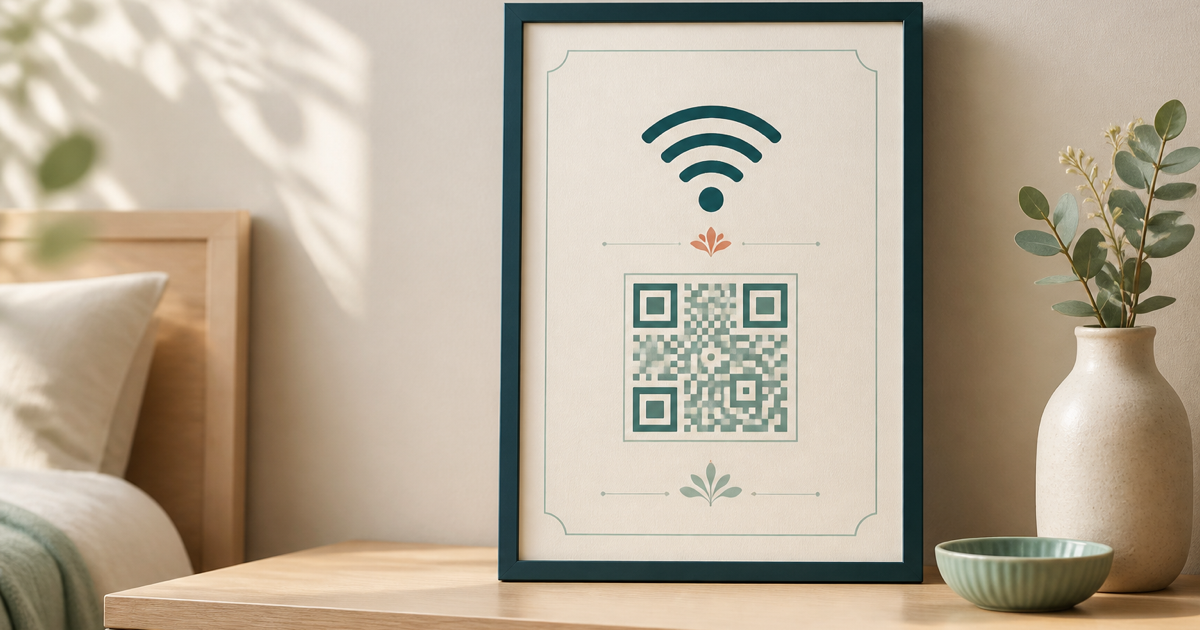
Tap In turns a network name and password into a finished guest Wi‑Fi sign. The QR code lets phone users join with a scan, while the printed details remain available for laptops or anyone who prefers to type them.
It is made for guest rooms, holiday rentals, cafés, studios, offices, and any shared space where a clear, good-looking sign is easier than repeating the password.
Enter the Wi‑Fi name and password above. The preview and QR code update as you type, and those details stay in this browser.
Choose from six templates, five palettes, custom wording, and an optional logo. The sign preview stays separate from the exact sheet preview.
A single $5 payment unlocks PDF download and browser printing for 24 hours on this browser. Save every version you need during that window.
Good to know
Common questions
Short answers about compatibility, privacy, payment, and placing the finished sign.
The QR code itself does not expire. It stops connecting when you change the network name, password, or security settings, so create and print a new sign after any of those changes.
Most current iPhone and Android camera apps recognize Wi‑Fi QR codes and offer to join the network. The sign also prints the network name and password as a fallback for laptops or devices that do not scan it.
Anyone who can scan or read the sign can use the credentials. Use a separate guest network when possible, keep the sign inside the intended space, and replace it if access should change.
No. The network name and password build the QR code and preview locally in your browser. They are not sent to Tap In, Stripe, or the analytics service.
One $5 payment unlocks PDF download and printing in all six formats for 24 hours in the same browser. You can edit and save multiple versions during that window without creating an account.
Choose A5, A4, Half Letter, Letter, or a two-up sheet, then print the PDF at Actual size or 100%. Use the center guide to cut two-up sheets and scan the finished print before displaying it.
Help and custom requests
Email support@wifisign.win if the QR code, PDF, payment return, or printing does not work, or if you need a different size, layout, language, or accessibility adjustment. Tell us what you were trying to do and which device or browser you used, but do not send your Wi‑Fi password.